 Carousel
Welcome to Carousel.
We're genuinely excited to get started with you. Here's exactly what happens next — no guesswork, just a clear path to launch.
Welcome to Carousel. To make this as easy as possible, here's exactly what's going to happen, step by step, from today until your first applicants are flowing through Carousel.
Sign the MSA
We'll send over the MSA for signature. Once that's signed, we're officially off to the races.
Join your Slack channel
We'll invite you to a shared Slack channel — your direct line to our team for questions, support, troubleshooting, and anything else that comes up. We pride ourselves on being fast and responsive here.
Get access to your workspace
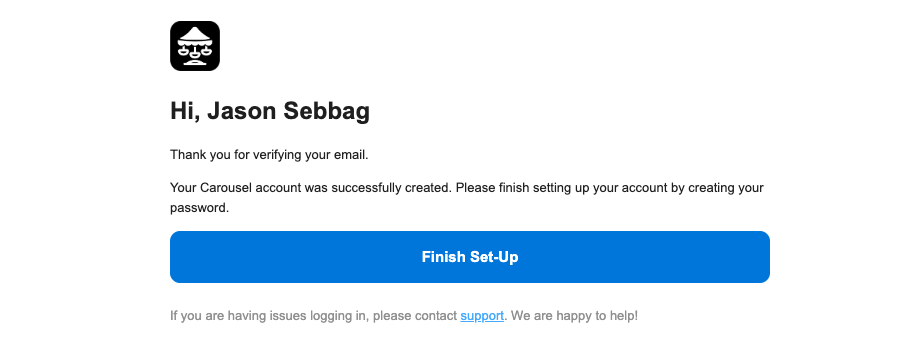
You'll receive an email inviting you to create your Carousel account (see below). Click the Finish Set-up button to join the workspace and create your password. Once you're in, you'll have full access to your workspace.
Access your onboarding manual
We'll share your onboarding manual — a complete walkthrough of how to use Carousel day to day. It covers how to send applications, review results, share with landlords, download PDFs, and everything in between.
It's the single reference for your whole team, so feel free to pass it along to anyone at your company who'll be using Carousel.
Open the onboarding manual →Get acclimated to the platform
Take some time to look around. Your workspace comes preloaded with sample data so you can see how completed applications, results, and reports actually look in Carousel before you send anything live.
Test the applicant workflow
You'll find a test link in your workspace that lets you walk through the exact experience your applicants will have, start to finish. A couple of things to know:
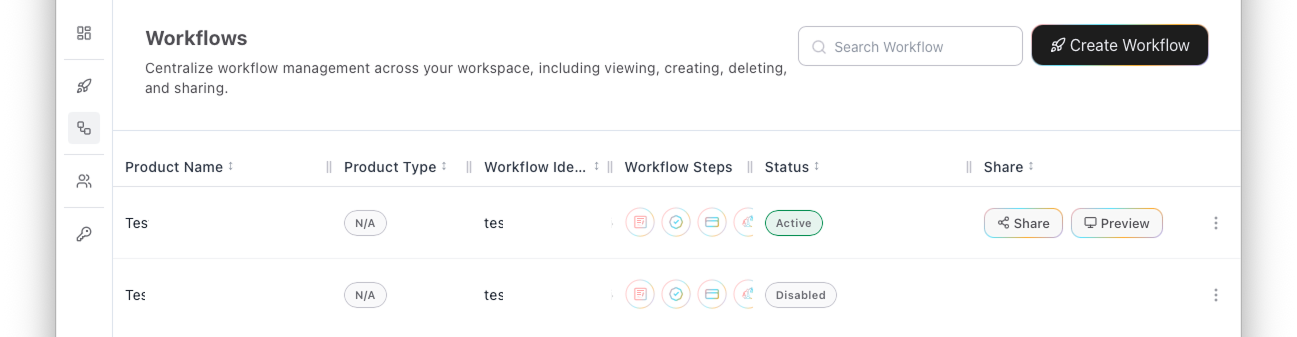 Preview
- It won't pull credit on you — it's purely for testing.
- At the bank verification step, select Flinks Capital as the institution. The username and password will appear right on screen. It's a dummy account with fake data, so you can see exactly what results look like once an applicant connects their bank.
Confirm your branding
As you go through the test flow, check that the branding looks right. We can swap out the logo and the image on the right of the application to match yours — just let us know.
Review the application questions
Go through the application itself and make sure everything you need from applicants is covered. Any extra documents you require or additional questions you want asked, we'll build right into the workflow.
Optional team training
If it's helpful, we're happy to schedule a session with your leasing agents to walk through how to use Carousel — sending out applications, sharing results with landlords, downloading PDFs, and more.
Go live
Once you've approved the test application, we'll create your production link to start sending to real applicants.
If you have any questions at all throughout the process, we're one message away on Slack. We're happy to assist you there or hop on a quick call to get you situated.
Can't wait to get this rolling.